Configuring SPSS for Mac to look and feel like SPSS for
PC
The default settings for SPSS for Mac make it harder for
students to use the program, so Mac OS users will want to
make a set of one-time changes to the program's
settings/options. These changes are specific to the SPSS
program and will not alter any other program on your
computer or its operating system.
Why do you need to make these changes? SPSS for Mac's
default settings make it hard for students to make the
most of methods textbooks' “how-to” instructions, online
tutorials, and instructional screencasts. Without changes,
your program's menus will be a different place and
sometimes not work the same way that they do on the PC
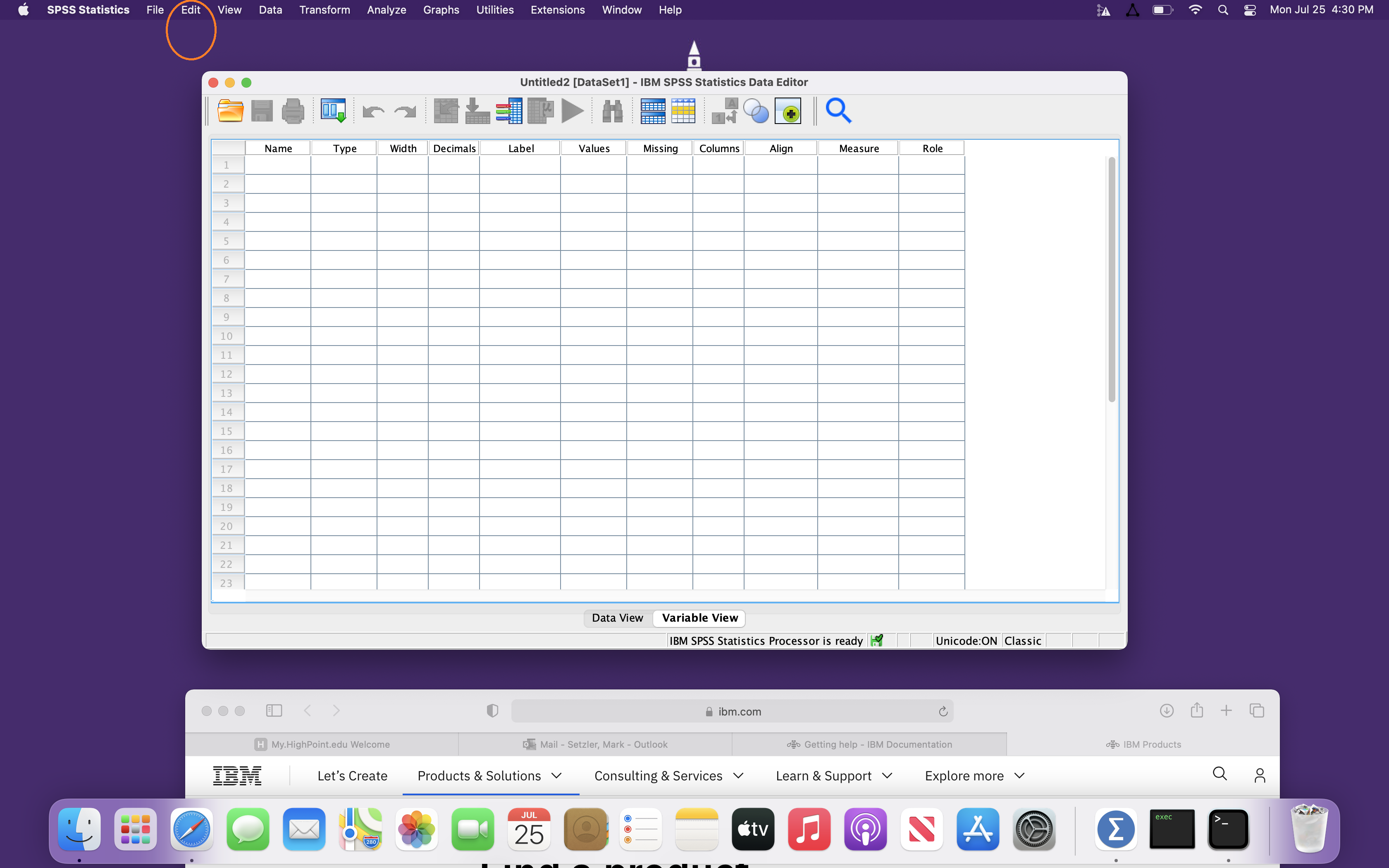
version. Specifically, with the default settings, the SPSS
menu displays nonsensical icons, none of which work;
instead, in the default mode, everything runs from a
second set of menus located at the very top of the screen:
Also, important command options (including the ability to
paste SPSS-generated syntax) are missing from some
point-and-click menus when SPSS for Mac runs in default
mode.
To make SPSS for Mac look and feel like SPSS for PC,
open up a blank SPSS dataset like the one in the image
above and select the edit option on the menu at the top
(in the image, it is circled).
From there, select "Options." In the options menu, select the tab that showing
"General" options:
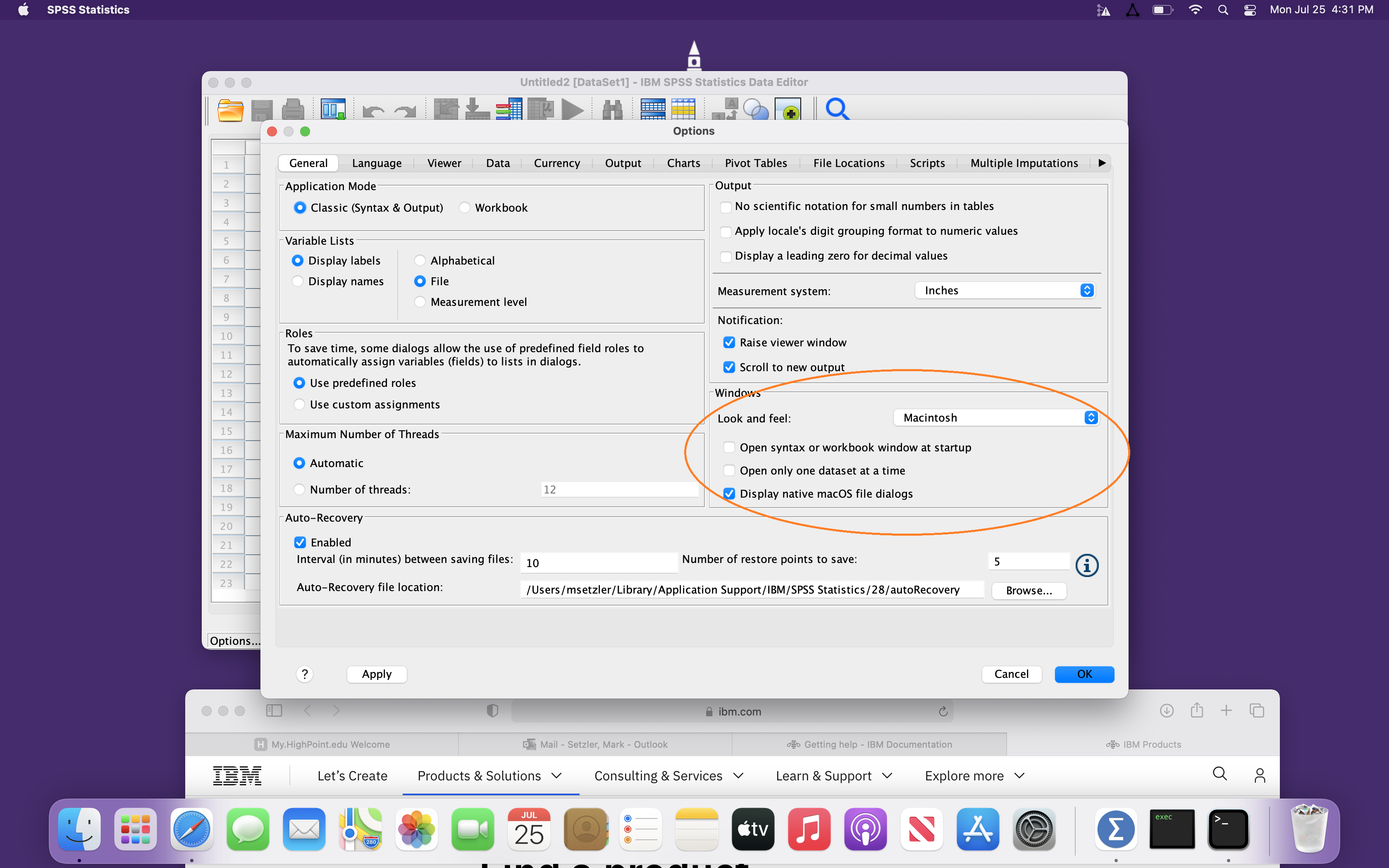
IMPORTANT!!!: The
image above is probably how things will look
when you open the options. YOU WILL
NEED TO CHANGE SETTINGS SO THAT THEY ARE
DIFFERENT FROM WHAT IS IN THE IMAGE.
On the left-hand side
of the General options tab screen, make sure that
Application Mode is set
to "Classic (Syntax & Output)."
Then, on the right-hand
side of the General options, go to the section
labeled "Windows" and:
(1) Uncheck the box that says "Display
native mac OS file dialogs), and
(2) Use the pull-down menu to change the "Look and Feel" setting from Macintosh
to "SPSS standard."
To repeat, when you
have reconfigured your settings
correctly, they will be DIFFERENT
than what is in the image above.
If you do not change what is in
the image, you will not have NOT
reconfigured things so that you
will be able to easily follow what
we are doing in class,
That's it. Going
forward, your SPSS for Mac should display working SPSS
menus and work just like SPSS for PC every time you open
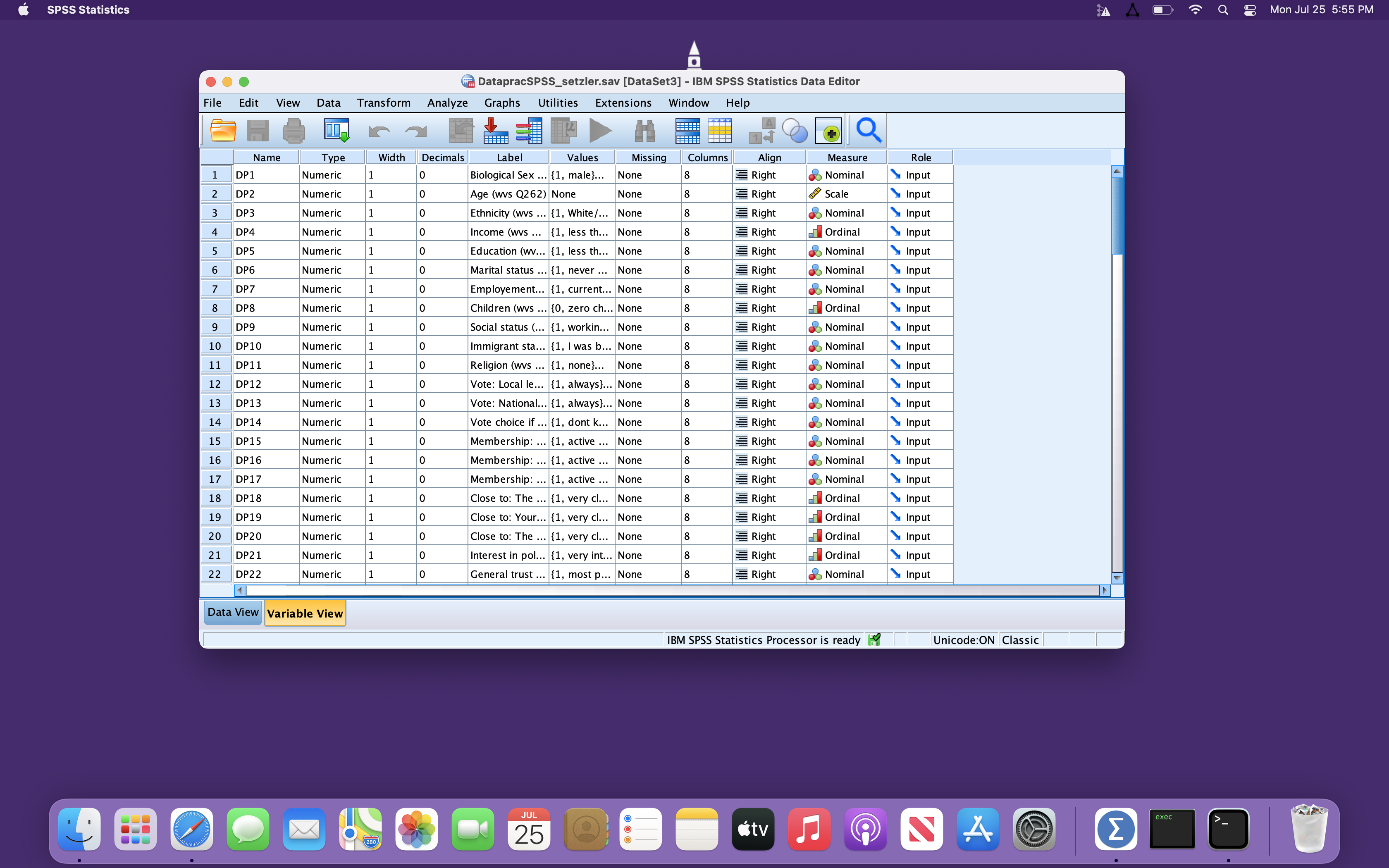
an SPSS file (i.e., dataset, syntax, or output file). The
image below shows what a dataset will look like when
opened with the altered settings. The program's menus will
all have labels and will operate as they should:
© Mark Setzler, 2000-2022. The pages on this website are intellectual property. They may not be reproduced without my written permission. Current students and faculty members at High Point University may reproduce any and all materials on the website for their own use.